 Anmelden

iFixit's PROLED MacBook Pro Teardown Reveals Logo LEDs
10. November 2026 um 23:02
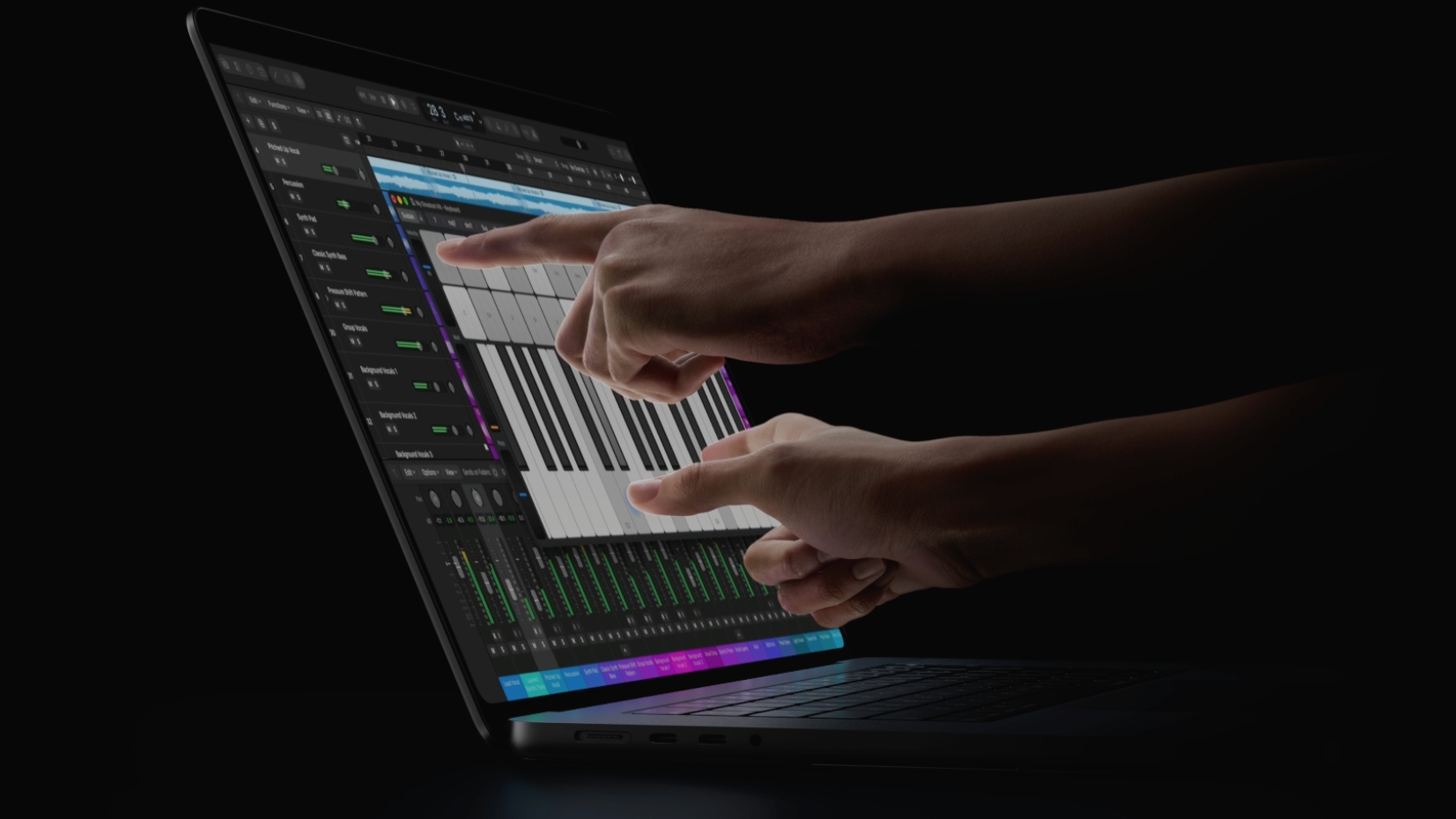
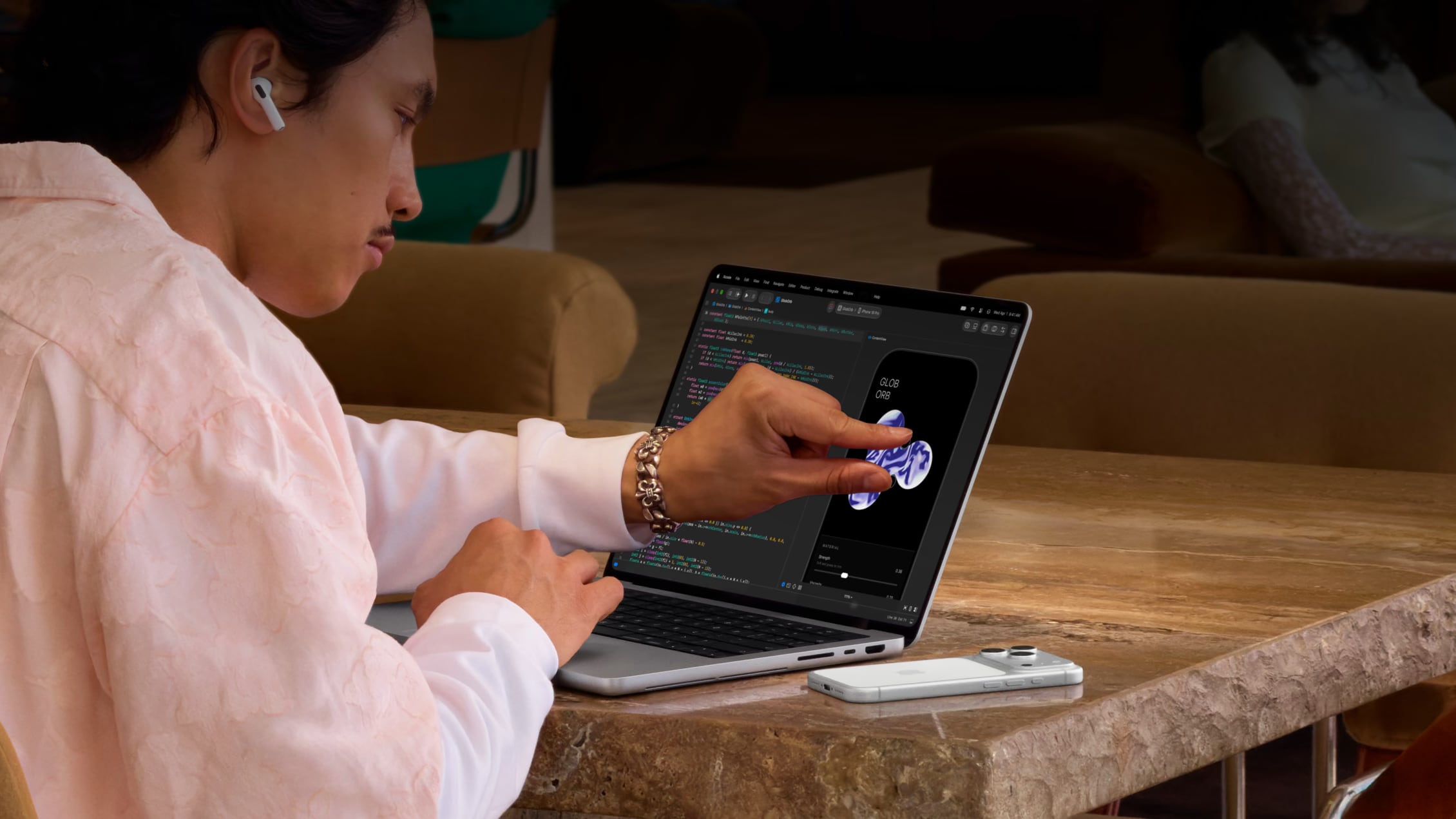
iFixit today took apart Apple's touchscreen PROLED MacBook Pro to see how Apple shed weight, what powers the logo, and how it compares to the 14-inch M6 MacBook Pro.
Apple added a glowing logo on the back of the PROLED MacBook Pro, but since there's no backlight to illuminate it, Apple used four LEDs, a reflective layer, and a diffuser to create an even glow. When the light is off, the logo's two-way mirror coating gives it a shiny finish.
Getting to the logo for repairs isn't easy because it's behind the display, so if it breaks, the only repair option is removing the screen. iFixit ended up breaking the panel because the glass separated from the layers underneath, destroying the OLED.
Apple says the PROLED MacBook Pro has a hinge designed for touch, but iFixit said it's basically identical to the M6 MacBook Pro's hinge, just stiffer, so it better holds its angle when the display is tapped at the top.
The Thunderbolt/USB-C ports and fans are replaceable, but the logic board has to come out. The HDMI port and SDXC card slot are soldered to the logic board, so they're not as easily replaced. The SSD and memory are also soldered.
iFixit swapped logic boards between two PROLED MacBook Pro models, and after running Repair Assistant, all of the components worked, including the touchscreen and Touch ID. iFixit said the touchscreen didn't add any new parts pairing problems.
The PROLED MacBook Pro's trackpad is a little bit smaller than the M6 model's, and weight was shed by removing some aluminum from the lower chassis. The lower case weighs 364 grams vs. 456 grams for the M6 model. The display assembly is 101 grams lighter despite the touchscreen and the glowing Apple logo, and the battery is two grams lighter too.
The PROLED MacBook Pro earned a repairability score of 5 out of 10, which is a point higher than the M5 MacBook Pro and a point below the MacBook Neo.
This article, "iFixit's PROLED MacBook Pro Teardown Reveals Logo LEDs" first appeared on MacRumors.com
Discuss this article in our forums
Apple added a glowing logo on the back of the PROLED MacBook Pro, but since there's no backlight to illuminate it, Apple used four LEDs, a reflective layer, and a diffuser to create an even glow. When the light is off, the logo's two-way mirror coating gives it a shiny finish.
Getting to the logo for repairs isn't easy because it's behind the display, so if it breaks, the only repair option is removing the screen. iFixit ended up breaking the panel because the glass separated from the layers underneath, destroying the OLED.
Apple says the PROLED MacBook Pro has a hinge designed for touch, but iFixit said it's basically identical to the M6 MacBook Pro's hinge, just stiffer, so it better holds its angle when the display is tapped at the top.
The Thunderbolt/USB-C ports and fans are replaceable, but the logic board has to come out. The HDMI port and SDXC card slot are soldered to the logic board, so they're not as easily replaced. The SSD and memory are also soldered.
iFixit swapped logic boards between two PROLED MacBook Pro models, and after running Repair Assistant, all of the components worked, including the touchscreen and Touch ID. iFixit said the touchscreen didn't add any new parts pairing problems.
The PROLED MacBook Pro's trackpad is a little bit smaller than the M6 model's, and weight was shed by removing some aluminum from the lower chassis. The lower case weighs 364 grams vs. 456 grams for the M6 model. The display assembly is 101 grams lighter despite the touchscreen and the glowing Apple logo, and the battery is two grams lighter too.
The PROLED MacBook Pro earned a repairability score of 5 out of 10, which is a point higher than the M5 MacBook Pro and a point below the MacBook Neo.
Related Roundup: MacBook Pro
Tag: iFixit
Buyer's Guide: MacBook Pro (Buy Now)
Related Forum: MacBook Pro
This article, "iFixit's PROLED MacBook Pro Teardown Reveals Logo LEDs" first appeared on MacRumors.com
Discuss this article in our forums